
There are a number of reasons you might need to login to a wireless router. Probably the two most common are firmware updates and basic wireless network adjustments. Whatever the reason, the process is quick and easy. This tutorial guides you through 4 fool-proof steps to login to any router (except Apple routers, just download and run AirPort Utility, it will do the magic for you). Learn these steps and you’ll be well on your way to becoming a Google executive.
First off, this whole tutorial might make more sense if you understand what an IP address is, because that’s a key part of this process. The easiest way to explain an IP address is to think of it just like the address of your home. Every device (computer, phone, game console, etc…) on your network has its own IP address, just like each home on your street has its own address. One of the reasons your home has an address is to help postmen (and women) deliver mail to the proper house. In the digital world, devices (homes) on a network send packets of information (mail) back and forth, just like a postman delivering mail to your home. We need to find out the IP address of your wireless router, so we can locate it on the network. Once we know the IP address (a string of numbers, often starting with “192.168” and ending in “.1.1” or “.0.1”), we can enter that number into a web browser and login to the router.
Step 1. Press the “Windows” key and the “R” key on your keyboard simultaneously (This portion of the tutorial is written specifically for Windows based computers). The “Windows” key usually has a picture of the windows logo. This will bring up the “Run” window. In the text field type in “cmd” (don’t include the “”)and click “OK”. Once you click “OK”, a new window will pop up. If this method isn’t working for you, an alternate method is to type “cmd” into the start menu search bar and then press enter.
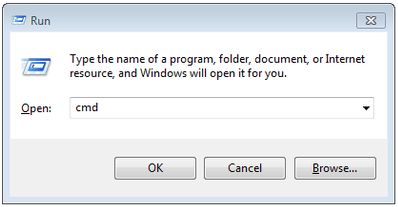
Run Window

Step 2. Type in “ipconfig” (again, don’t include the “”)and press enter on your keyboard. A bunch of information will show up. Scroll down until you find the “Default Gateway” line. The string of numbers at the end of the line (192.168.0.1 in this example) is the IP address of the router.
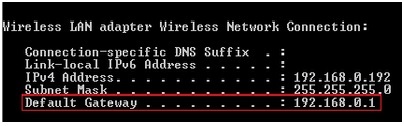
Wireless Router IP Address
Step 3. Now that we know the IP address of your router, we can login to it. Open up your internet browser, most people use Firefox, Internet Explorer (a.k.a. Windows Exploder), or Chrome. In the address bar at the top of the screen, type in the IP address of the router and press enter. Your browser will take you to the login page of your wireless router.
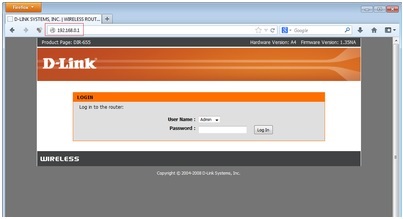
D-Link Router Login Page
Step 4. At this point you will be asked for the username and password to login to the wireless router. This is not the same password as the one to join your wireless network. This password is almost always left at the default setting.
 SecureArmors
Leave a comment